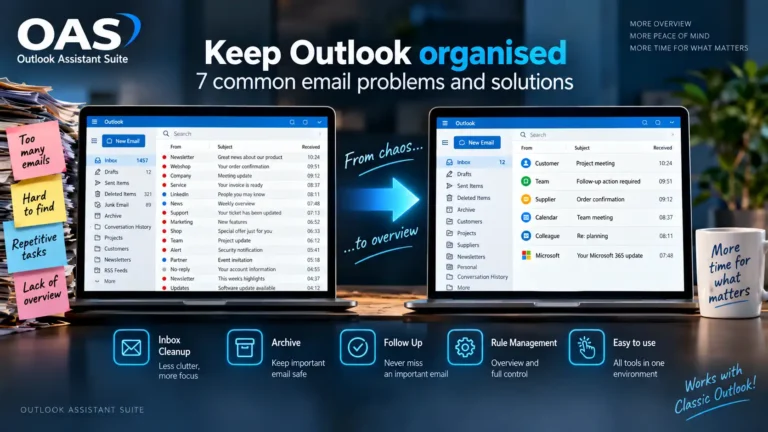
Cleaning up an Outlook inbox is often straightforward. Keeping it organized afterwards is much harder. Newsletters, notifications, invoices, order confirmations and other recurring emails can quickly fill up your Inbox again.
You can of course delete messages manually, move them to folders or create Outlook rules. This works well as long as the amount of email and the number of rules remain manageable. As you receive more email, however, it takes increasingly more time to decide where messages belong and which rules are responsible for processing them.
In this article, we look at how to clean up your Outlook inbox, which built-in Outlook features can help, and how OAS Inbox Cleanup can automate the process and help keep your inbox organized.
Why does an Outlook inbox fill up so quickly?
Anyone who regularly needs to clean up their Outlook inbox soon discovers that manually moving messages is not a permanent solution. Automatically processing recurring email can prevent much of that repetitive work.
For many users, the Inbox gradually becomes a collection point. Important messages sit alongside newsletters, automated notifications, invoices, confirmations and emails that could have been moved to another folder long ago.
A full inbox is not only cluttered. It also becomes more difficult to see which messages actually need your attention.
Cleaning up often starts simply: create a few folders and manually move messages into them. Outlook rules are then added to process messages from specific senders automatically. This can work very well, but over time dozens of rules and folders can become a management problem of their own.
The goal is therefore not simply to clean up your Outlook mailbox, but to create a system that keeps it organized.
Clean up your Outlook inbox manually
The simplest method is to process messages manually. You can delete email you no longer need and move messages you want to keep to an appropriate folder.
A practical folder structure might, for example, contain folders for customers, suppliers, administration, projects or newsletters.
This has one important advantage: you decide exactly where each message belongs.
The disadvantage is equally clear. Every new email requires another action. With only a few messages per day this is hardly a problem, but with dozens or hundreds of messages it quickly becomes repetitive work.
That is why Outlook provides several ways to automate part of this work.
Clean up your inbox with Outlook’s built-in features
Outlook includes several tools for organizing email. You can delete or archive messages, use folders, assign categories and create rules.
Outlook also includes features for cleaning up conversations. These can remove redundant messages from an email conversation when the same content is already included in a later message in that conversation.
This can help reduce mailbox clutter, but it does not automatically solve another problem: organizing new incoming email on an ongoing basis.
For that, Outlook rules are a logical next step.
Automatically clean up your Outlook inbox with rules
Outlook rules let you perform actions automatically when a message meets specific conditions.
For example, you can automatically move email from a particular sender to a specific folder. You can also use conditions based on the subject, recipient or other message properties.
For example, you can:
automatically move newsletters to a Newsletters folder;
collect invoices in an administration folder;
keep notifications from certain systems out of your Inbox;
automatically sort messages from a specific sender;
move recurring email directly to the appropriate folder.
For many users, this is already enough to organize their Outlook inbox.
The main advantage is that once a rule has been configured, it runs automatically. You no longer have to repeat the same action every time.
When Outlook rules become difficult to manage
A few rules are easy to manage. But that can change when you have been using Outlook for years.
New senders appear, projects change, folders are added and more recurring emails lead to more rules. Eventually, you can end up with a long list of rules without always remembering why they were originally created.
Rules can also overlap or no longer match the way you currently work with email.
The problem then shifts:
You may spend less time processing email manually, but increasingly more time managing the automation itself.
That is where a different approach can become useful.
Automatically clean up your Outlook inbox with OAS Inbox Cleanup
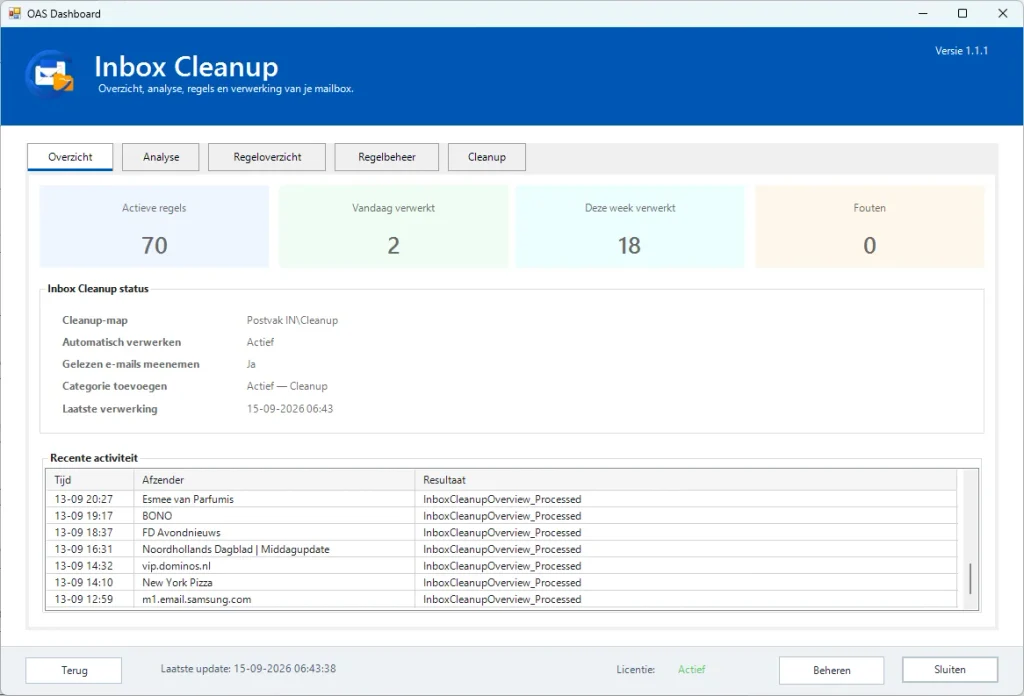
OAS – Outlook Assistant Suite includes Inbox Cleanup to make recurring email processing easier.
The idea is that you should not have to decide repeatedly what to do with similar messages. When it is clear that certain emails can always be processed in the same way, you can create a Cleanup rule for them.
This lets you automatically process recurring messages and clean up your Outlook inbox without having to move each email individually.
Inbox Cleanup is not intended to replace a good folder structure. Instead, it helps you use that structure consistently.
Automatically process recurring emails
Consider a newsletter that you want to keep but do not want to see in your Inbox every time it arrives.
You can manually move it to a folder each time. But if you already know that future messages from the same sender belong there as well, that manual step is unnecessary.
The same applies to automated notifications, order confirmations and other recurring messages.
By creating a Cleanup rule, OAS can process those messages automatically from then on.
Clean up existing emails in your Outlook mailbox
Automation is particularly useful for new email, but with a large inbox the problem often also involves messages that are already there.
It is therefore important to distinguish between two situations:
Cleaning up: processing existing email that is already in your mailbox.
Keeping it organized: ensuring that new, similar email is processed automatically in the future.
Combining the two provides the greatest benefit. Cleaning up old messages only gives you a temporarily empty inbox. If the daily flow continues unchanged afterwards, the same problem starts all over again.
With a structured approach, you do not just clean up your inbox; you also prevent the same cleanup work from returning again and again.
Clean up your Outlook inbox without losing important emails
Automatically cleaning up your inbox does not mean deleting as much email as possible.
In fact, in many situations moving messages is much more useful than deleting them.
An invoice, for example, can be removed from your Inbox while still being kept for future reference. The same applies to customer correspondence, orders, project information or newsletters you may want to consult later.
A good Cleanup strategy therefore starts with one question:
Which emails require my attention and which emails do I simply want to keep?
Messages that do not require immediate attention can automatically be stored in the right place. This keeps your Inbox focused much more clearly on messages that actually require action.
Organize your Outlook inbox: don’t start with dozens of rules
A common mistake when automating email is to immediately create a rule for almost every sender.
Instead, start with the messages you receive most frequently.
Look at which newsletters, notifications or administrative messages you manually move every week. Automate those categories first.
With only a limited number of rules, you can often eliminate a large amount of repetitive work.
You can then expand the system gradually.
This keeps not only your inbox organized, but also the system you use to clean it up.
Combine Inbox Cleanup with other OAS features
An organized inbox is only one part of effective email management.
Some messages should be processed automatically, others need to be kept, while still others require attention later. That is why OAS combines Inbox Cleanup with other features for organizing Outlook.
For example, you can archive email that you no longer need every day and continue to follow up on important correspondence when you are waiting for a reply.
The ultimate goal is not an empty inbox.
The goal is an Outlook inbox where you can quickly see which emails still require attention, while recurring administrative work is automated as much as possible.
Clean up your Outlook inbox and keep it organized
A one-time major cleanup can feel good, but the effect is usually temporary.
The greatest benefit comes when you look at why certain messages keep appearing in your inbox while you are cleaning it up.
Do you move a certain type of email to the same folder every week? Then it is a good candidate for automation.
Do you repeatedly delete the same type of notification? See whether you can process it automatically instead.
In this way, cleaning up your Outlook inbox changes from a periodic chore into a process that becomes increasingly automated.
OAS Inbox Cleanup was developed to make exactly that process easier: clean up existing email and automate recurring processing so your Inbox stays organized afterwards.
Frequently asked questions about cleaning up your Outlook inbox
How can I quickly clean up my Outlook inbox?
Start with large groups of messages that are easy to identify, such as newsletters, automated notifications and recurring senders. Delete what you no longer need and move messages you want to keep into logical folders. Then identify which recurring actions can be automated.
Can Outlook automatically move emails to a folder?
Yes. Outlook rules can automatically move messages that meet specific conditions to a folder you choose. This is particularly useful for recurring email from a regular sender.
How can I automatically clean up my Outlook inbox?
You can use Outlook rules, among other options. When the number of recurring actions and rules grows, OAS Inbox Cleanup can help automate email processing from one central system.
What is the difference between cleaning up and archiving in Outlook?
Cleaning up focuses on organizing and processing your current email. Archiving is mainly intended to move email you want to keep out of your day-to-day working environment while keeping it available for later.
What should I do if my Outlook mailbox is full?
First check which messages and attachments are using the most space and which email you no longer need. Simply moving messages to other folders within the same mailbox generally does not reduce the total size of the mailbox. Deleting messages or using an appropriate archiving solution may therefore be necessary.
Can I automatically process existing emails?
That depends on the method you use. Outlook rules can also be applied to existing messages in certain situations. OAS Inbox Cleanup is also designed to process existing and recurring email according to configured Cleanup rules.
Automatically clean up your Outlook inbox: from one-time task to regular workflow
Cleaning up your Outlook inbox automatically is most useful when you look not only at what is in your Inbox today, but also at which messages will arrive again tomorrow. Start with recurring email that you currently process manually and automate it step by step.
Outlook rules can already handle much of this. When you want more overview and centralized control, OAS Inbox Cleanup can further support the process. This turns cleaning up your Outlook inbox from a periodic cleanup task into part of your everyday email management.
Follow up on emails in Outlook becomes important as soon as you send a message to a customer, supplier or colleague and are still waiting for a reply. A few days later, dozens of new messages have arrived and that sent email disappears from view. It is only when you need the information again that…
Practical tips for keeping Outlook organised. Discover how to manage a full inbox, old email, follow-ups and Outlook rules more efficiently and spend less time on repetitive tasks.