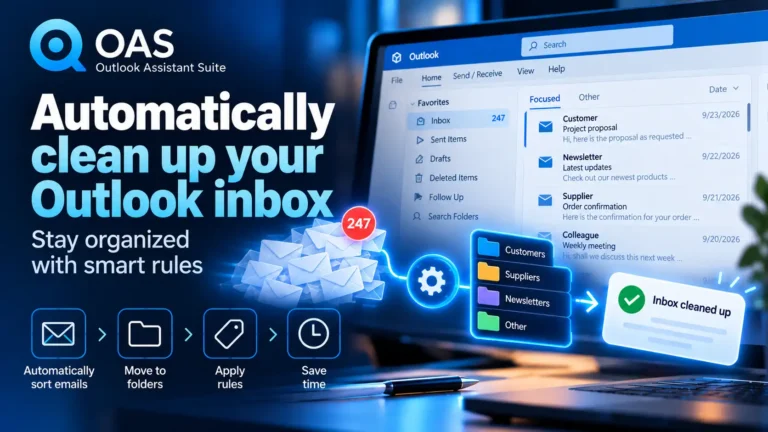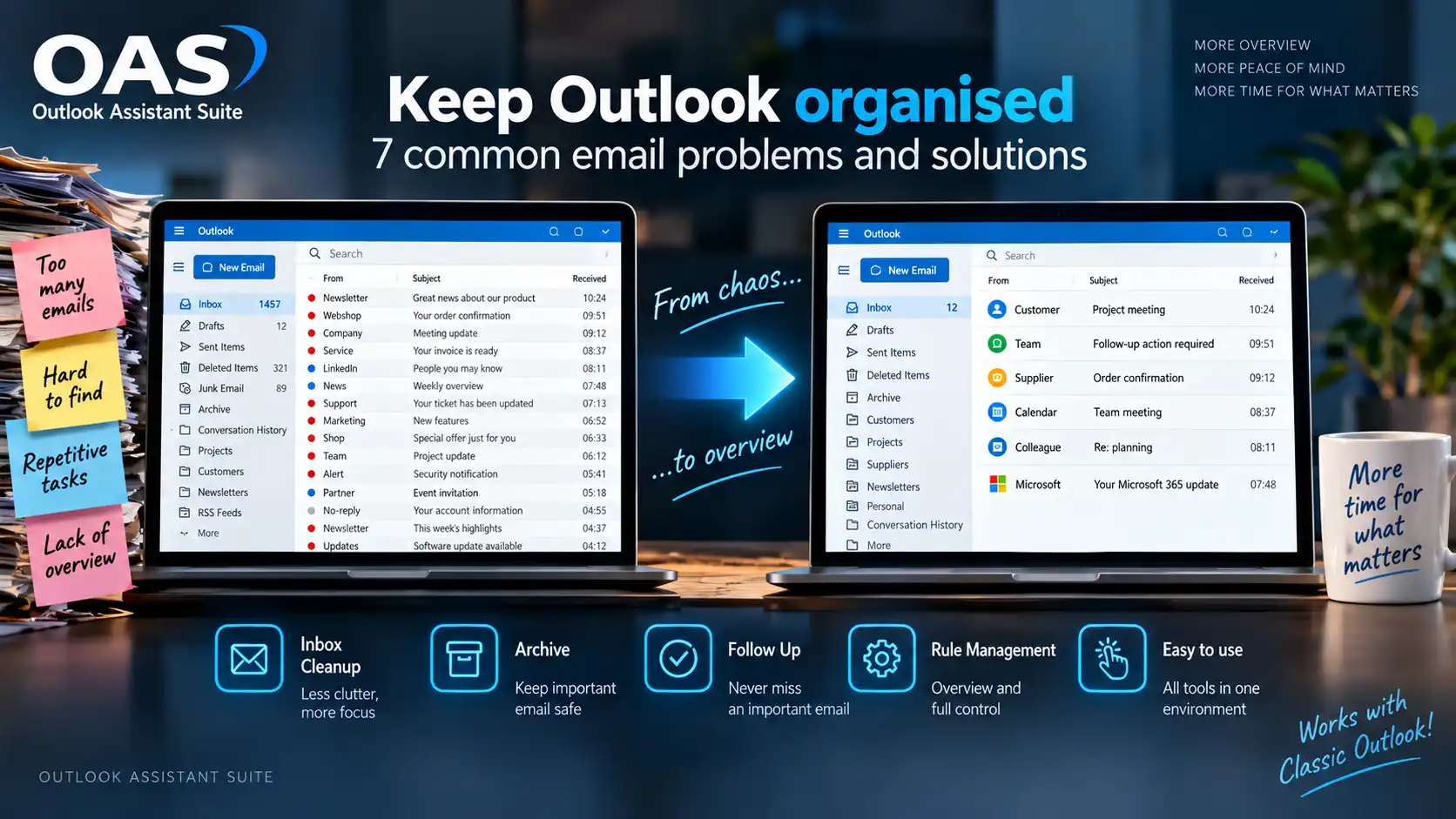
Outlook organised: 7 common email problems and solutions
Keeping Outlook organised becomes increasingly difficult as your mailbox grows. Anyone who uses Microsoft Outlook every day will probably recognise the problem: over time, hundreds or thousands of messages accumulate in your inbox, more and more rules are created, and important emails become harder to find.
Outlook offers many ways to organise email. Yet cleaning up, archiving and following up often take more time than necessary. Some functions are scattered throughout Outlook, others require many manual steps, and a mailbox that was once carefully organised does not stay organised by itself.
So how do you keep Outlook organised without manually cleaning up your inbox every day?
In this article, we look at seven common problems with managing email in Classic Microsoft Outlook and how OAS – Outlook Assistant Suite can help.
1. My Outlook inbox keeps growing
A full inbox usually does not appear overnight. Newsletters, order confirmations, notifications, automated messages, invoices and ordinary correspondence keep arriving.
You delete a few messages now and then or move them to a folder, but a few weeks later the same problem starts all over again.
The real problem is therefore often not the amount of email that is there now, but the fact that the same types of email keep arriving again and again.
From occasional clean-ups to structured management
With Inbox Cleanup in OAS, you can analyse the contents of your inbox and use rules for email that regularly returns.
Instead of manually processing the same senders and messages over and over again, you can use recurring patterns to manage your inbox in a more structured way.
That does not mean every email should automatically disappear. The aim is to spend less time on predictable work and leave more attention for the messages that really matter.
2. I want to keep old email without letting my mailbox grow indefinitely
Many Outlook users keep email for years.
And there is often a good reason for that. An old message can suddenly become important later: an agreement with a supplier, correspondence with a customer, an invoice or simply information you did not yet know you would need when you first received it.
Deleting everything is therefore not an attractive option.
But keeping everything in the same active mailbox is not ideal either.
Keeping email is not the same as keeping everything in your inbox
Archiving allows old email to be kept without requiring your everyday mailbox to contain your complete email history.
With the Archive function in OAS, you can store email in a structured way and find it again later when needed.
This creates a clear distinction between:
email you are working with now and email you want to keep for later.
That distinction can bring a great deal of clarity to a mailbox that has grown larger and larger over the years.
3. I forget emails that still require action
Not every important email requires an immediate response.
Sometimes you need to investigate something first. Sometimes you are waiting for someone else to reply. And sometimes you read a message during a busy moment and think:
I’ll come back to that later.
That usually works — until the message disappears beneath dozens of new emails.
After all, a read email is not automatically a completed email.
Important email remains important even when it leaves your immediate view
That is why OAS includes Follow Up.
The aim is not to create yet another task list, but to make it easier to see which messages still require attention.
This allows you to distinguish between email that is genuinely finished and messages that still require an action or response.
This is particularly useful when Outlook is not only used for communication, but has effectively become part of your daily workflow.
4. My Outlook rules have become difficult to manage
Outlook rules are extremely useful.
Automatically move a message from a particular sender to a folder? No problem. Keep newsletters separate? That is possible too.
But anyone who has used rules for years will probably recognise the downside as well.
New rules are added, old rules remain, and eventually you are no longer quite sure which rule does what.
The tool that was supposed to make Outlook more organised then becomes disorganised itself.
Rules should reduce your workload
OAS brings Outlook rule management together with its other mailbox management tools.
The principle is simple: automation is only useful when you can also understand and manage what is being automated.
A well-organised collection of rules is therefore at least as important as the number of rules you have created.
5. I spend too much time repeating the same actions
Open an email. Review it. Move it. Open the next one. Review it again. Move it again.
One such action takes hardly any time.
But dozens or hundreds of repetitions do.
That is an important difference between occasional email management and a structured approach.
If you manually process the same types of messages every week, it is worth asking not only:
“How do I clean up these messages?”
but more importantly:
“Why do I have to do this again every time?”
OAS was developed from exactly that perspective: making repetitive tasks easier wherever possible, without taking control of your mailbox away from you.
6. Outlook may already be able to do it, but where was that function again?
Classic Microsoft Outlook is a comprehensive application. Over the years, this has resulted in an enormous amount of functionality.
That has an interesting consequence.
Sometimes a capability is not missing at all — it simply takes too many clicks or too much searching to use it comfortably.
That distinction matters.
Software does not have to add entirely new functions to be useful. It can also add value by making existing tasks faster, clearer and easier to access.
That is an important principle behind OAS.
Functions including Inbox Cleanup, archiving, follow-up and rule management are made accessible from one environment.
The aim is therefore not to replace Outlook.
OAS is designed to make Classic Outlook easier and more efficient to use.
7. I want to automate email without losing control
Automation sounds attractive until software starts making decisions you did not expect.
With email, that matters even more. Accidentally deleting, moving or classifying a message incorrectly can be more troublesome than a few extra mouse clicks.
That is why smart mailbox management should also include a certain degree of control.
OAS is intended as a tool for the Outlook user. The principle is not that software should independently decide what matters to you, but that repetitive tasks can be carried out more easily and clearly.
Automate where it makes sense.
Stay in control where it matters.
Keeping Outlook organised: what does it achieve in practice?
Ultimately, the greatest benefit does not come from any single function.
It is about the whole picture.
An inbox with fewer unnecessary messages left behind. Old email that can be kept without dominating your everyday mailbox. Messages that still require attention remain easier to see. Rules remain manageable. And less time is spent repeating the same actions.
This allows email to become what it should be: a tool for communication rather than an administrative task that constantly needs maintaining.
What is OAS – Outlook Assistant Suite?
OAS stands for Outlook Assistant Suite and was developed for users of Classic Microsoft Outlook on Windows.
It brings several email management tools together in one environment, including:
- Inbox Cleanup;
- email archiving;
- following up messages;
- Outlook rule management;
- configuration and diagnostic logging.
OAS does not replace Outlook. Instead, it works alongside Classic Outlook and is designed to make everyday email tasks clearer and less cumbersome.
OAS supports Dutch, English, German, French, Spanish, Italian and Portuguese and can be tried completely free for 14 days.
Privacy: your email remains your email
When software works with email, privacy is not a minor detail.
That is why OAS does not collect usage telemetry about how you use OAS or Outlook. It does not track which functions you use, how many emails you process or which folders you use.
This reflects the principle behind OAS: software that helps you manage your own Outlook environment, without analysing how you use it in the background.
Is OAS suitable for every Outlook user?
Not necessarily.
If you have a small mailbox, receive very little email and can easily manage everything manually, you may not need an additional tool at all.
But if you recognise several of the problems in this article — an ever-growing inbox, many repetitive tasks, old email you want to keep, unmanageable rules or messages that still require follow-up — a more structured approach can make a considerable difference.
That is exactly why the trial period is useful: you can use OAS in your own Outlook environment and decide for yourself whether it adds something to the way you work.
How do you keep Outlook organised?
Everyone uses Outlook differently.
Some people work with dozens of folders and rules, while others leave almost everything in their inbox. And a solution that works perfectly for a small personal mailbox may not necessarily be suitable for someone who processes hundreds of business emails every day.
That is why we would like to hear about the experiences of other Classic Outlook users.
What problems do you encounter in Outlook?
Which tasks take more time than they should? Which function are you missing? Or have you found a useful way to keep your mailbox organised?
Let us know in the comments below.
Real-world experiences like these can not only help other Outlook users, but also give us ideas about where email management could be made even easier.