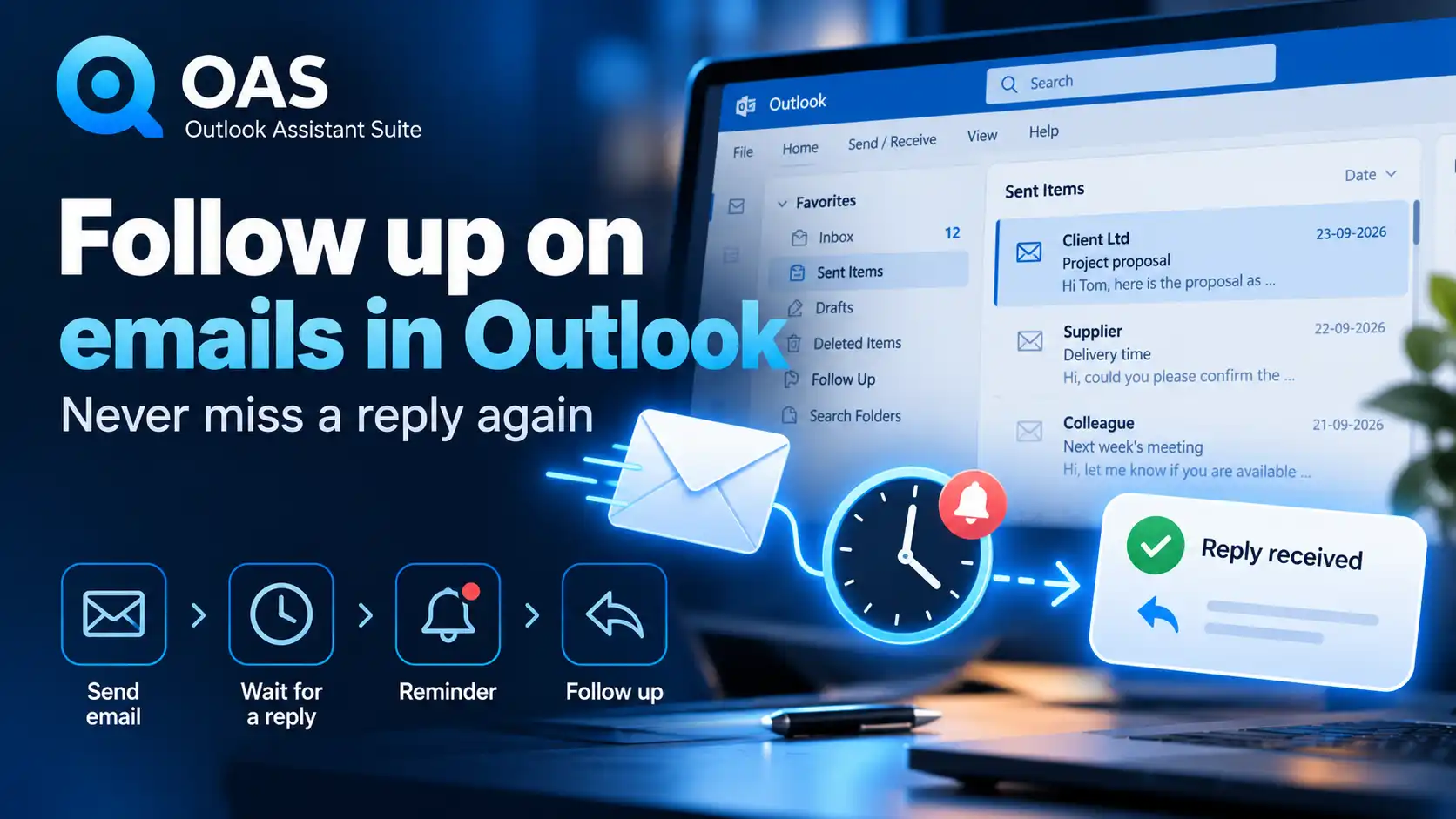
Follow up on emails in Outlook becomes important as soon as you send a message to a customer, supplier or colleague and are still waiting for a reply. A few days later, dozens of new messages have arrived and that sent email disappears from view. It is only when you need the information again that you realise you never received a reply.
For many Outlook users, sending email is not the problem. The real challenge is
following up on emails when you are still waiting for a reply.
Microsoft Outlook offers several ways to flag messages and set reminders. However, with a busy mailbox it can still be difficult to keep track of which messages you are waiting for a reply to, which emails still require action from you and which matters have already been completed.
In this article, we look at how you can
follow up on emails in Outlook, which features Outlook already provides and how to prevent important messages from quietly disappearing from view.
Why following up on emails in Outlook can easily go wrong
Sending an email is a completed action. You click
Send and the message appears in Sent Items.
But the work associated with that email is not always finished.
Think, for example, of a quotation you are still waiting for a response to, a question sent to a supplier, an appointment that needs to be confirmed or information a colleague still needs to provide.
As long as no reply arrives, nothing happens in your Inbox. That is exactly why it is so easy to forget such a message.
Anyone who regularly handles dozens or hundreds of emails will find it difficult to remember which sent messages are still awaiting a response.
Following up on emails with Outlook’s standard features
Classic Outlook already provides several options for this. A sent or received message can be given a
follow-up flag and, if required, a reminder.
For a message you send, you can choose options such as
Today, Tomorrow, This Week, Next Week or a custom date. Outlook can then display the flagged message as a task and show a reminder at the chosen time.
Microsoft Support
This is particularly useful when you already know:
“If I haven’t received a reply by Thursday, I need to follow this up.”
Microsoft also recommends flagging a message for yourself when you need a response and optionally setting a reminder.
Microsoft Support
Where can you find emails flagged for follow-up?
Flagged messages do not have to be found one by one in your mailbox.
In classic Outlook, follow-up flags can be displayed in the To-Do Bar. You can also create a Search Folder for messages flagged for follow-up, or search and filter for flagged messages.
Microsoft Support
So Outlook certainly does provide tools for following up on email.
The problem becomes more apparent when you want to
systematically keep track of sent emails that have not yet received a reply.
A flag primarily means that you have indicated that a message requires attention. You still have to remember to add the flag, choose an appropriate follow-up date and eventually mark the message as complete.
That is perfectly manageable for a few messages. With many ongoing email conversations, however, it can quickly become additional administration.
A reminder is not the same as having an overview
That distinction is important.
An Outlook reminder mainly answers the question:
“When do I need to look at this again?”
But if you send a lot of email every day, you also want answers to questions such as:
Which messages am I still waiting for a reply to?
How long have I been waiting?
Which messages need attention now?
Which emails have already received a reply?
For that purpose, an overview of outstanding follow-ups is often more useful than a collection of individual reminders.
Keep ‘waiting for a reply’ separate from ‘action required’
A simple improvement is to distinguish between two types of email:
Action required – messages where you still need to do something yourself.
Waiting for a reply – messages where the next action lies with someone else.
That may sound obvious, but in a busy mailbox the two can easily become mixed together.
Microsoft even suggests using a
@Waiting category for messages where you are waiting for a response. It also recommends flagging the sent message for yourself.
Microsoft Support
If you use flags, categories and reminders consistently, you can already create a reasonably effective follow-up system within Outlook itself.
But consistency is the key.
Follow up on emails without tracking everything manually
That was also the idea behind developing
Follow Up in OAS – Outlook Assistant Suite.
Not because Outlook has no follow-up features. It does.
The aim is to make the work around those features easier: providing one clear place where you can see which emails need attention, rather than repeatedly working with different Outlook views, flags and folders.
This reflects a broader principle behind OAS: making Outlook features that are scattered, cumbersome or difficult to access easier to use.
Less searching, more overview
Good email follow-up is ultimately not about setting as many reminders as possible.
It is about being able to see
where action is still required at the right moment.
For someone who sends only a few emails a day, Outlook’s standard follow-up flags may be sufficient. Anyone who handles a large amount of correspondence every day or has several matters in progress at the same time will benefit more from a consistent workflow and one clear overview.
Whichever method you use, distinguish between emails that still require action from you and messages where you are waiting for someone else to reply.
That alone helps prevent important sent emails from disappearing into an ever-growing Sent Items folder.
Try OAS free for 14 days
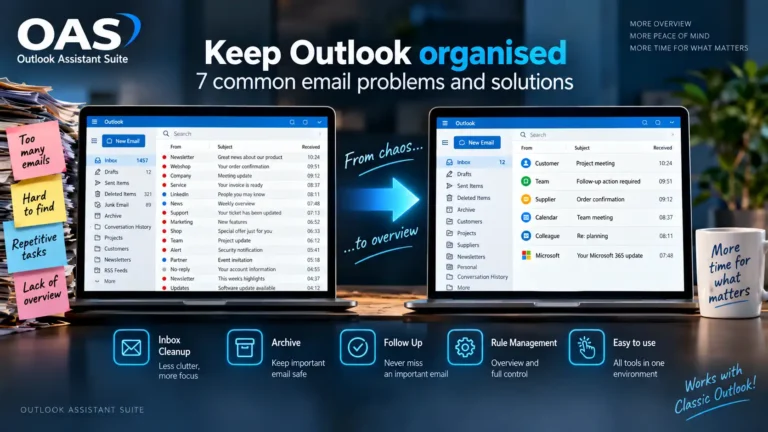
OAS – Outlook Assistant Suite is designed for
classic Microsoft Outlook for Windows and brings together
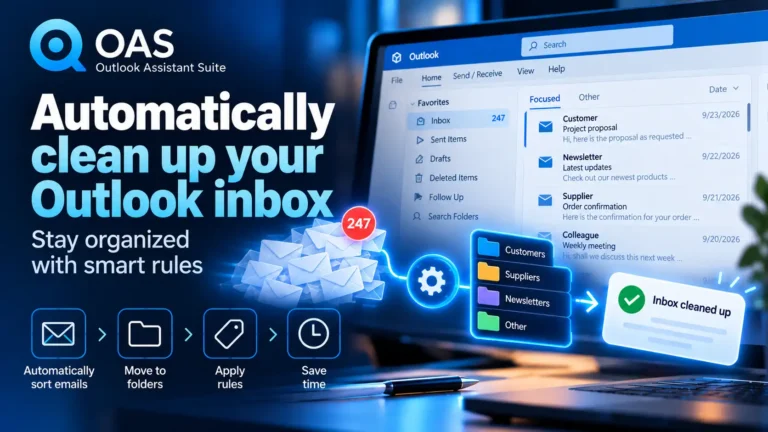
Inbox Cleanup,
Archive, Follow Up and rule management in one environment.
If you would like to see whether Follow Up helps you keep better track of your email, you can
try OAS completely free for 14 days.